01
Paste or upload
Paste a complete HTML document from ChatGPT, Claude, Gemini, Codex, or Cursor, or upload index.html.
Limited-time offerPro & Max plans — 20% offSave 20% on monthly and yearly billing.
Save 20% on monthly and yearly billing.
AI HTML hosting
Have a single HTML file or a code block copied from an AI chat? Paste the HTML into HTMLShare, preview it, publish it, and get a link you can share.
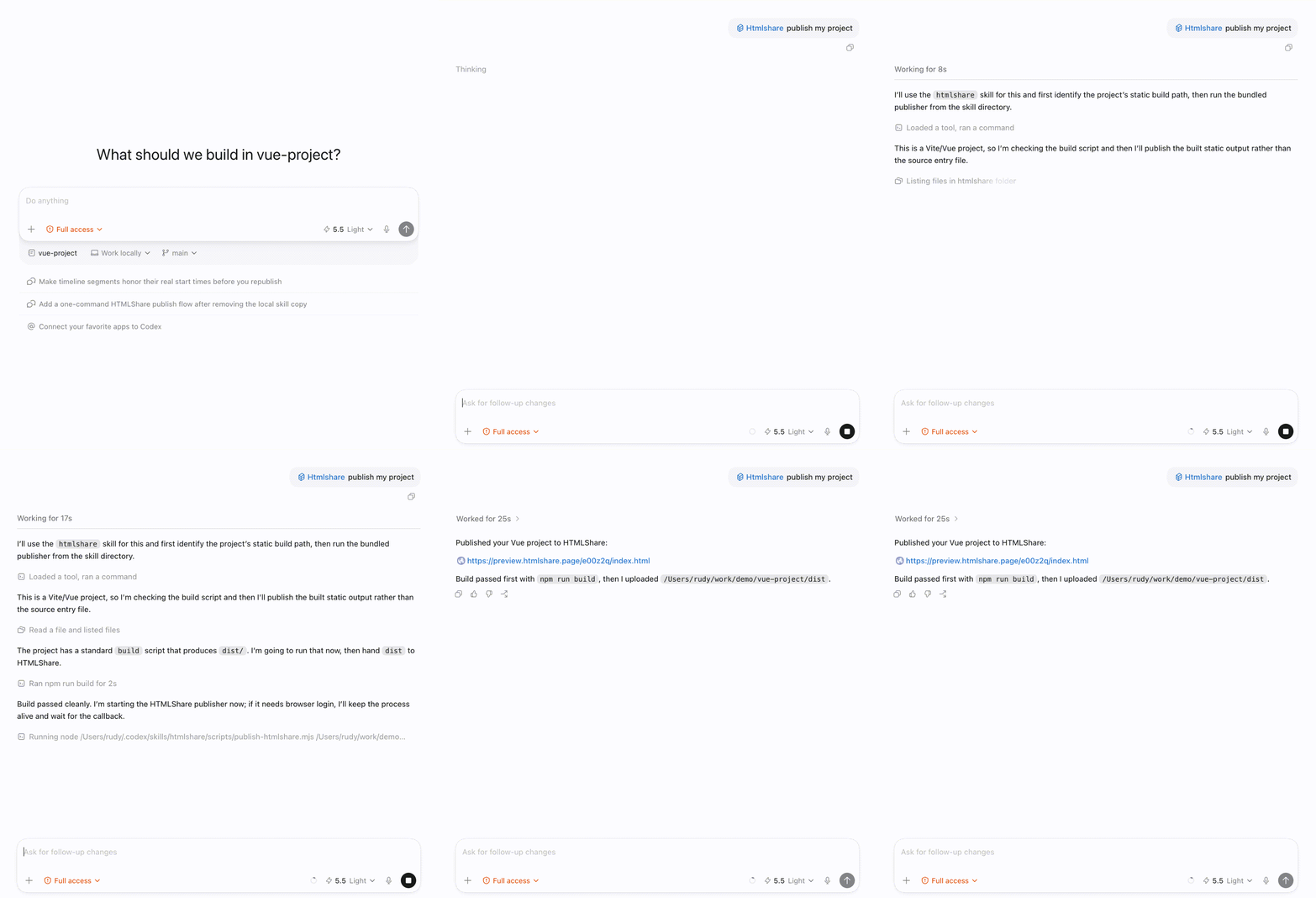
Install HTMLShare Skill for Codex
Install once, then use /htmlshare in Codex whenever the generated HTML is ready to share.
This page is for the most direct case: you have HTML and want a URL.
01
Paste a complete HTML document from ChatGPT, Claude, Gemini, Codex, or Cursor, or upload index.html.
02
Check that the page renders correctly before sending it to anyone.
03
Create a shareable hosted URL for feedback, demos, and quick review.
Publishing checklist
AI coding tools make the first draft fast, but most publishing problems still come from ordinary static-site details: missing files, local paths, unbuilt framework projects, or source folders uploaded instead of browser-ready output. Before you send a review link, treat the page like a small release candidate.
HTMLShare is designed for the review step before production. The homepage explains the broader AI-generated HTML preview publisher, while this page focuses on the specific publishing path for ai html hosting.
For plain HTML, the entry file should be index.html. For generated projects, open the output folder and make sure the first page is easy to identify before packaging the upload.
Images, CSS, JavaScript, fonts, and SVG files should use relative paths. Local computer paths and editor-only references often work on your machine but break after publishing.
If the AI tool produced a Vite, React, Vue, Svelte, or similar project, upload the static build output such as dist or build rather than the source folder.
After publishing, open the generated URL in a fresh browser tab. Check desktop and mobile layout, interactions, navigation, images, and any external CDN dependencies.
Paste code publishing
The existing HTMLShare publisher already includes a paste-HTML mode. Use it when an AI assistant gives you a complete document instead of a ZIP.
<!doctype html>
<html>
  <head>
    <title>AI generated page</title>
    <meta name="viewport" content="width=device-width, initial-scale=1" />
  </head>
  <body>
    ...
  </body>
</html>
Review workflow
A preview URL is most useful when it moves a project from private generation into shared review. Send the link with context: what changed, what kind of feedback you want, and whether reviewers should focus on copy, layout, mobile behavior, interaction, or approval.
Keep this separate from production deployment. If the page is still a prompt-driven draft, an internal demo, or a client concept, a no-Git preview link avoids premature infrastructure decisions while still giving everyone the same browser view.
Review whether the generated page matches the feature intent or PRD.
Check visual hierarchy, responsive behavior, spacing, and interaction details.
Open one browser link instead of downloading files or reading an AI chat transcript.
Test the static output before a production host or engineering deployment is chosen.
File checklist
If you only have a snippet from an AI tool, turn it into a complete HTML document first.
| Copied AI HTML | Paste the full document into the HTML editor |
|---|---|
| Single file | Upload index.html directly |
| HTML plus assets | Upload a ZIP with CSS, JS, images, and fonts |
| ChatGPT output | Copy the code block into index.html or paste it in HTMLShare |
| Broken local file | Check asset paths, then publish a clean preview link |
No setup path
Most problems come from missing files, local-only paths, or uploading source code instead of browser-ready output.
Use relative paths like images/hero.png instead of local computer paths
Include CSS, JavaScript, image, SVG, and font files in the ZIP
Keep index.html at the root of the upload
Build framework projects before uploading their output
Not every generated page deserves a production deployment on day one. If the page is meant for feedback, approval, design critique, QA, or a client checkpoint, a preview link is usually the better first step. It keeps the workflow fast and gives reviewers a real browser URL without asking the team to decide on domains, analytics, repository ownership, redirects, or release infrastructure too early.
Move the project to production hosting when it needs public search traffic, a branded domain, access controls, analytics, server-side code, database connections, payment flows, or long-term uptime. Until then, HTMLShare lets the static output stand on its own so the team can judge the generated page before committing to a heavier stack.
Use a preview link for first-round feedback, internal demos, and AI-generated drafts.
Use production hosting when the page becomes a public property or business-critical workflow.
Keep secrets, API keys, private datasets, and backend credentials out of static preview uploads.
Replace the preview with a fresh link when the generated output changes materially.
HTMLShare gives copied AI HTML a real browser URL without asking you to set up infrastructure.
Input
HTML code, index.html, or a ZIP project
Output
A shareable HTTPS preview link
Best for
AI-generated pages, prototypes, mockups, and review links
Not for
Server-side apps, databases, private keys, or production backends
Internal paths
Yes. Use the HTMLShare publisher, choose the paste HTML option, paste the document, preview it, and publish.
Yes. Copy the ChatGPT HTML into index.html or paste it directly into HTMLShare.
Ask the AI tool for a complete HTML document with doctype, html, head, body, viewport meta tag, and any CSS or JavaScript included or linked correctly.
Yes. Put them in a ZIP with index.html at the root and upload the ZIP.
No. HTMLShare publishes directly from pasted HTML, a single file, or a ZIP upload.