Subdomain publishing
How to Publish an HTML Project to a Subdomain
A memorable subdomain makes a static preview easier to share and easier to remember. This guide shows how to publish an HTML project with HTMLShare, connect a `*.lanvo.app` address, and keep that address pointing to the latest version.
What a Lanvo subdomain does
HTMLShare can give a published static project a stable address such as portfolio.lanvo.app. The first part is the label you choose; lanvo.app is the subdomain base. The address points to the project you connect, so people can open a memorable URL without knowing the project’s generated preview slug.
Lanvo addresses are designed for static previews and lightweight sharing. They do not turn an HTML project into a server application, add a database, or provide server-side code. Like the regular HTMLShare preview URL, a Lanvo page is marked noindex so a draft or client review link is not intended to appear in search results.
Prepare and publish the HTML project
Start with a static project that can run in a browser. A single-page project should have an index.html file. A multi-file project can include CSS, JavaScript, images, fonts, and other assets in the same folder or in subfolders with relative paths.
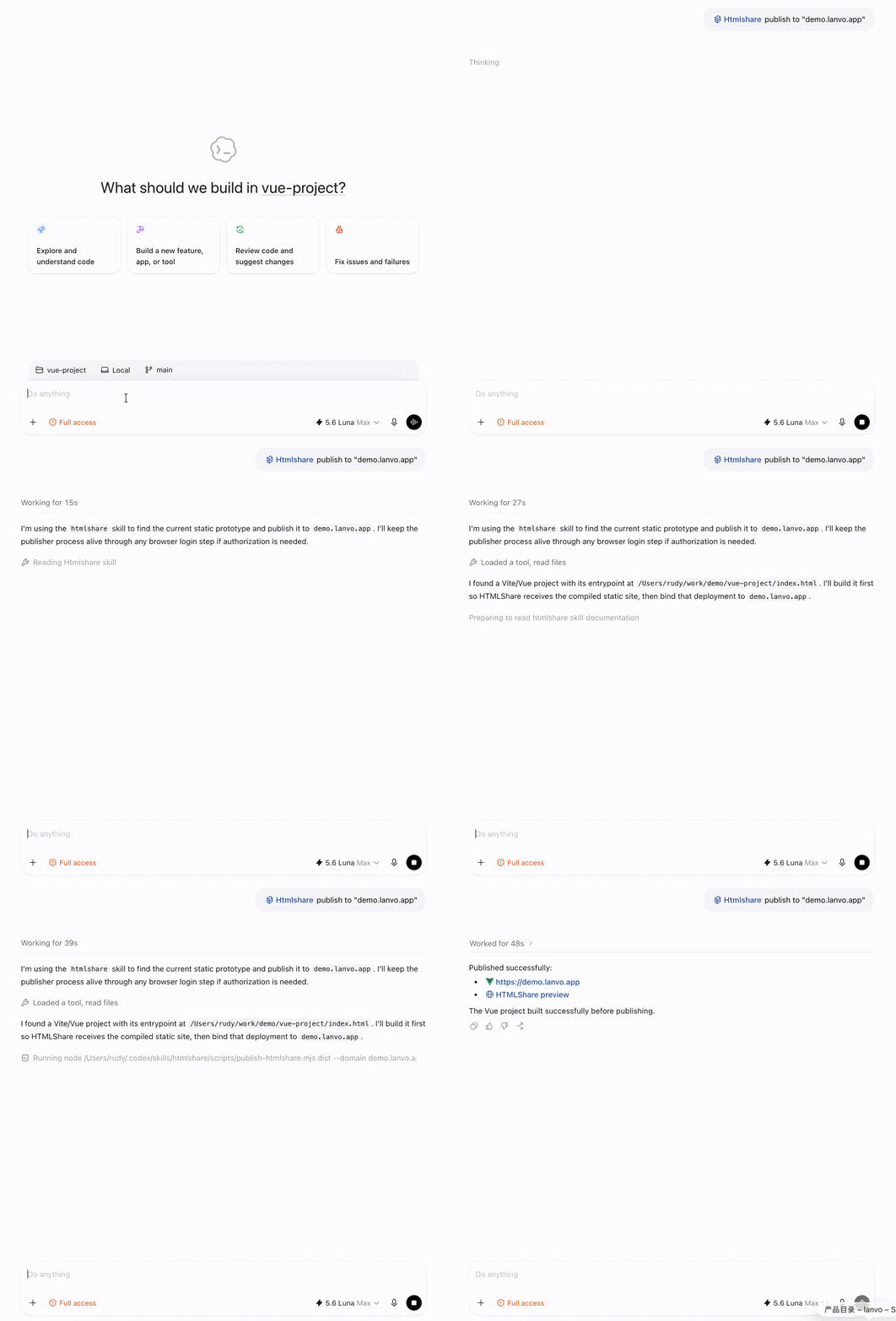
Then publish it to HTMLShare. You can upload one HTML file or a ZIP from the browser, or use the HTMLShare Skill from Codex, Claude, or Cursor. For a multi-file project, upload the complete folder as a ZIP so the asset paths stay together.
After the upload finishes, open the project details page and confirm that the preview looks right. The subdomain is connected to this published project, not to an unfinished local folder.
- Open the project locally and check the desktop and mobile layouts.
- Confirm that images, fonts, scripts, and links load without a local development server.
- Remove API keys, sample passwords, private notes, and other content that should not be public.
Connect the subdomain
Once the project is published, follow these steps:
Choose a label that describes the project or the audience you will send it to. For example, spring-campaign, client-demo, or maya-portfolio is easier to recognize than a random string. Labels are first come, first served, and system-reserved names cannot be used.
- Open the HTMLShare dashboard and go to
Projects. - Open the project you want to share.
- Find the
Lanvo subdomainsection in the project details. - Enter a label, such as
portfolio, in theSubdomain labelfield. The final address will beportfolio.lanvo.app. - Wait for the availability check. Use lowercase letters, numbers, and hyphens; the label cannot start or end with a hyphen and can be up to 63 characters.
- Select
Connect subdomain. - Wait for the address to finish edge sync, then use
CopyorOpento test the new URL in a browser.
Keep the same address when you publish updates
Publishing a new version of the same project does not require you to connect the subdomain again. The Lanvo address follows that project’s latest ready deployment, so you can revise the HTML, publish again, and continue sharing the same link.
After each update, open the Lanvo URL and check the parts that commonly break in static projects: relative asset paths, client-side navigation, mobile layout, and links that used to point at a local development server. If the dashboard shows Waiting for edge sync, give the address a moment to finish provisioning before testing it again.
Plans, trial access, and limits
Lanvo subdomains use domain slots. Pro includes three slots and Max includes five. Paid accounts can use one Lanvo subdomain per project, up to the number of available slots in the account. If you need more capacity, the billing page can offer extra Lanvo slots for eligible paid plans.
Free accounts can try one real Lanvo address for 24 hours without a credit card. The trial label is locked during the trial. After the trial ends, upgrade if you want to keep the address active; the label is reserved for a short grace period so you have time to decide.
Troubleshoot a subdomain that will not connect
- The label is invalid: remove spaces, underscores, dots, and special characters. Use only lowercase letters, numbers, and hyphens, without a leading or trailing hyphen.
- The label is unavailable: someone else is already using it, or it is reserved by the system. Try a more specific label.
- The address is still pending: the project binding is waiting for edge synchronization. Refresh the project details page after a short wait.
- The page opens but assets are missing: publish the complete static folder or ZIP and use relative paths. Uploading only
index.htmlcannot include files that remain on your computer. - You need a production website: move the approved project to a production host when you need your own domain, server-side behavior, forms, analytics, or a long-term release workflow. Lanvo is a branded static preview address.
A quick publishing checklist
Once the address is active, send the Lanvo URL to reviewers, clients, or teammates. When the project changes, publish the updated version and keep the same memorable link.
- Test the static project locally.
- Upload the complete HTML project to HTMLShare.
- Check the published preview.
- Choose an available Lanvo label in project details.
- Connect the subdomain and wait for the active status.
- Open the final URL on desktop and mobile before sharing it.
Publish your next AI prototype as a preview link
HTMLShare turns AI-generated HTML files and static ZIP projects into browser preview links for product reviews, client feedback, QA checks, and vibe coding handoffs.